Your MKV file plays perfectly on your computer. Then you try uploading it to YouTube, sending it to a client, or playing it on your iPhone — and nothing works. The platform rejects it. The phone can’t open it. The editing software stutters.
The fix is simpler than most guides admit. Here’s exactly what you need to know.
MKV and MP4 Are Containers, Not Quality Levels
Before converting anything, understand this: MKV and MP4 are containers, not codecs. They’re the box, not what’s inside it.
An MKV file and an MP4 file both containing H.264 video at identical bitrates look exactly the same. Quality comes from the codec and bitrate — not the container label.
This matters because it determines which conversion method you use. Get this wrong and you waste hours re-encoding a file that could have been converted in 10 seconds.
What Makes MKV Different From MP4
MKV (Matroska Video) launched in 2002 as a royalty-free, open-source container built to hold more than any format before it:
- Unlimited video, audio, and subtitle tracks in one file
- Chapter markers with named navigation points
- Soft subtitles in multiple formats: SRT, ASS, SSA, PGS, VobSub — switchable on/off during playback
- Full HDR metadata for Dolby Vision and HDR10+ content
- Any codec: H.264, H.265/HEVC, AV1, VP9
A single Blu-ray backup MKV might contain 4K HEVC video, English Dolby Atmos audio, three dubbed languages, English SDH subtitles, director commentary, and 28 chapter markers — all in one file. MP4 handles maybe three of those things gracefully.
MP4, by contrast, was built for compatibility. Nearly every device, browser, platform, and app on earth plays MP4 natively — iPhone, Android, smart TV, YouTube, Instagram, Zoom, Teams. That universal support is exactly what MKV lacks.
Remux vs Re-encode: The Decision That Changes Everything
This is what almost every guide gets wrong. Converting MKV to MP4 involves two completely different operations:
Remuxing moves the video and audio streams from the MKV container into an MP4 container with zero re-encoding. No quality loss. Takes seconds. Works when:
- Video codec is H.264 or H.265
- Audio codec is AAC or MP3
Re-encoding decodes and recompresses the video from scratch. Some quality loss is inevitable (minimal at high bitrate). Takes much longer. Required when:
- Video uses VP9 or AV1
- Audio uses DTS or Dolby TrueHD (MP4 doesn’t support these)
How to check: Open your MKV in MediaInfo (free). If the video track says H.264 or H.265 and audio says AAC — you can remux. If it says VP9, AV1, DTS, or TrueHD — you’ll need to re-encode.
How to Convert MKV to MP4 (Step-by-Step)
Using AhaConvert — fastest method, no software required:
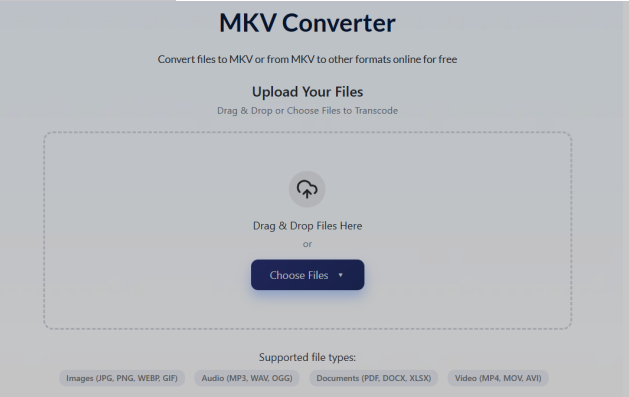
- Open AhaConvert’s free online MKV Converter
- Upload your MKV file from your device or paste a URL
- Select MP4 as output format
- Choose H.264 + AAC for maximum device compatibility
- Select which audio track to keep if your MKV has multiple language tracks
- Click Convert and download
AhaConvert automatically detects whether remuxing is possible and takes the lossless path when it is — no codec knowledge required. Files are protected with 256-bit SSL encryption, deleted within 24 hours, and no account is needed.
Recommended settings by destination:
| Destination | Video Codec | Bitrate | Audio |
| General playback | H.264 | 8,000 kbps | AAC 192kbps |
| YouTube/Vimeo | H.264 | 10,000 kbps | AAC 192kbps |
| iPhone/Android | H.264 | 5,000 kbps | AAC 192kbps |
| Long-term archive | H.265 | 8,000 kbps | AAC 192kbps |
When to Keep MKV (Don’t Convert These)
Converting isn’t always the right move:
Keep MKV if you’re using Plex, Kodi, or Jellyfin — these players handle MKV natively and preserve all subtitle tracks and audio options.
Keep MKV for anime and foreign films — MKV’s ASS/SSA subtitle format supports styled, timed subtitles with custom fonts and positioning. Converting to MP4 often strips or flattens these into burned-in subtitles with no toggle option.
Keep MKV for Blu-ray archives — A 4K HDR MKV preserving the original Dolby Atmos audio and three subtitle tracks cannot be fully replicated in MP4 without losing at least one of those elements.
MKV vs MP4: Complete Comparison
| Feature | MKV | MP4 |
| Multiple audio tracks | Unlimited | 1–2 practical limit |
| Subtitle formats | SRT, ASS, SSA, PGS, VobSub | SRT/WebVTT basic only |
| Chapter support | Full named chapters | Basic |
| Browser playback | None natively | Universal |
| iPhone/Android | Requires VLC app | Native |
| YouTube/Instagram | Rejected | Required |
| Blu-ray/HDR archiving | Industry standard | Limited |
| Home theater (Plex/Kodi) | Ideal | Good |
Frequently Asked Questions
Does converting MKV to MP4 reduce quality?
No — if your MKV contains H.264 or H.265 video with AAC audio, you can remux it to MP4 with zero quality loss. The video data moves containers without any re-encoding. If re-encoding is required (VP9, AV1, DTS audio), quality loss is minimal at 8,000+ kbps output but cannot be completely eliminated. AhaConvert automatically uses the lossless remux path when possible.
Why won’t my MKV play on my iPhone?
iOS has no native MKV support. Install VLC for iOS (free) for immediate playback, or convert to MP4 using AhaConvert for permanent native compatibility in the Photos app and any other iPhone player.
Will converting MKV to MP4 remove subtitles?
It can — this is the most common conversion mistake. MKV stores subtitles as separate soft tracks (SRT, ASS, PGS). MP4 supports basic subtitle tracks but not all MKV subtitle formats. AhaConvert lets you select which subtitle track to embed. If subtitle accuracy is critical, verify your output file before deleting the original MKV.
Why are MKV files so large?
Large MKV files typically contain high-bitrate video (4K HEVC Blu-ray rips run 40–80GB) or multiple audio/subtitle tracks. The container itself adds negligible size — the codec and bitrate are responsible. Converting to H.265 MP4 at matched bitrate produces comparable file sizes.
Is AhaConvert free?
Yes — completely free, no account required, no software to install. Upload your MKV, select MP4, convert, and download. Files are encrypted during transfer and automatically deleted within 24 hours.
The Bottom Line
Converting MKV to MP4 is worth it when you need compatibility — mobile playback, YouTube uploads, client sharing, or editing software that prefers MP4. It’s not worth it when your existing tools handle MKV perfectly and you’d lose subtitle tracks or audio options in the process.
When you do convert, use remuxing whenever possible. AhaConvert handles the technical decision automatically — upload your file, and it takes the fastest, highest-quality path available.